Exporting your edit
Updated 2026-07-19
Cuts in the editor are a plan, not a file. Export Video turns the plan into a real rendered video — with every cut applied — that you can play and download.
Save vs. Export
- Save Edits stores your cut list so you can close the editor and come back. Nothing is rendered. Free and instant.
- Export Video kicks off a render: Dockable applies your cuts to the source video and produces a new file. The original video is never modified.
Exporting
- Make your cuts (manual, fillers, silences — any mix).
- Click Export Video in the editor footer.
- The right panel switches to the Renders tab automatically, showing your render job queued and then in progress.
Renders typically take a moment — roughly in proportion to the video's length. You can keep editing, close the modal, or leave the page; the render continues in the background.
The Renders tab
The Renders button in the editor's header opens your render history for this video.
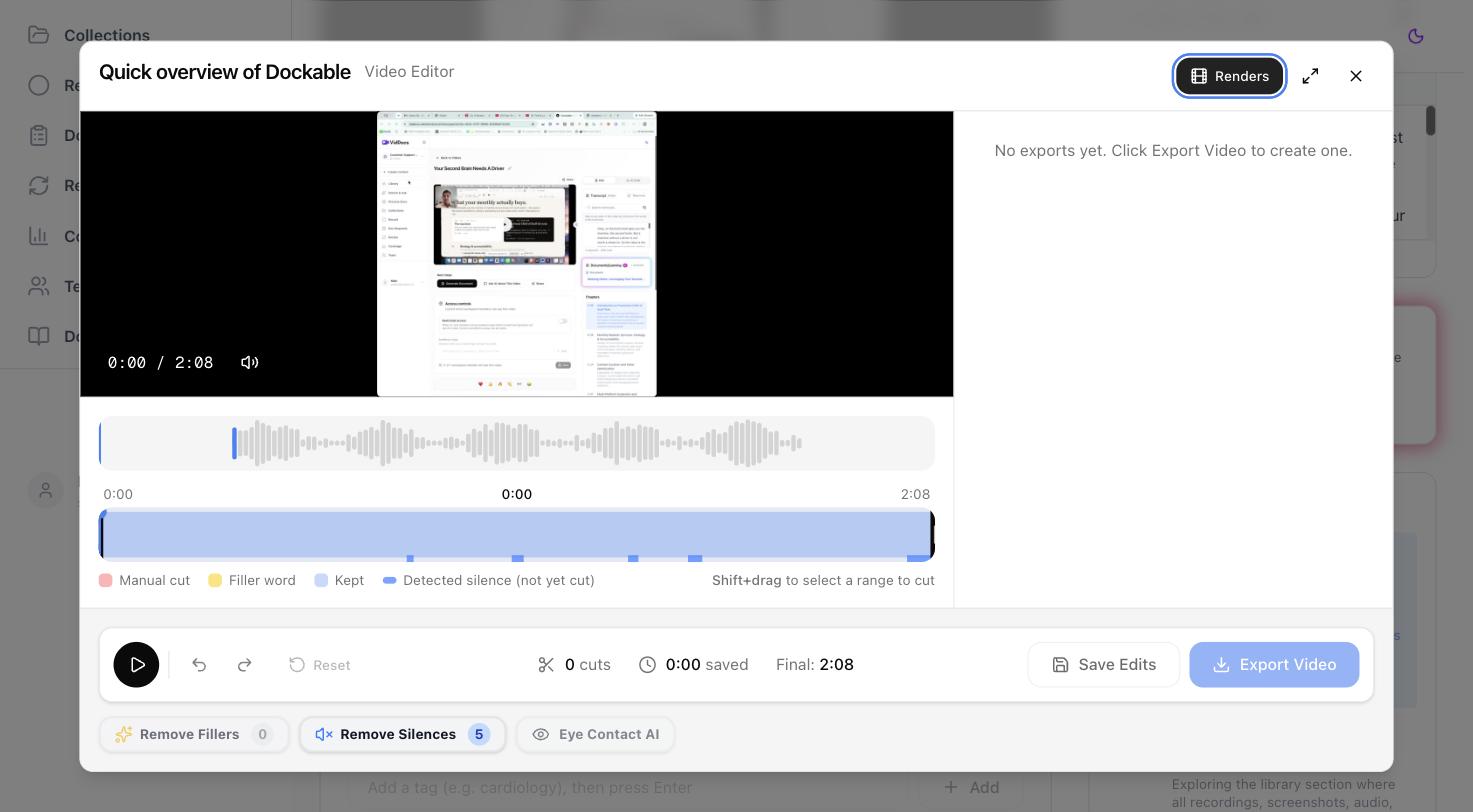
Every export you've made is listed with its status:
- Queued / Rendering — in progress, updating live.
- Export ready — finished, with Play and Download buttons.
- Export failed — something went wrong; the error shows inline, and exporting again is safe.
FAQ
Does exporting replace the original video?
No. The export is a separate file. The original — and its transcript, documents, and search index — stay exactly as they were.
Can I export the same video multiple times?
Yes. Each export is its own entry in the Renders tab, so you can iterate on an edit and keep earlier versions available.